Phone Numbers
Phone numbers are the entry point for your voice agents. They connect ScaleAI to the phone network (PSTN) using SIP. SIP is the standard that carries phone calls over the internet.
There are two kinds of phone numbers:
- SIP numbers: You add these yourself with credentials from your phone company. These are the only numbers you can create manually in this page.
- Telephony numbers: These come from a telephony provider you connect in Integrations. They appear here automatically once you have set up the provider.
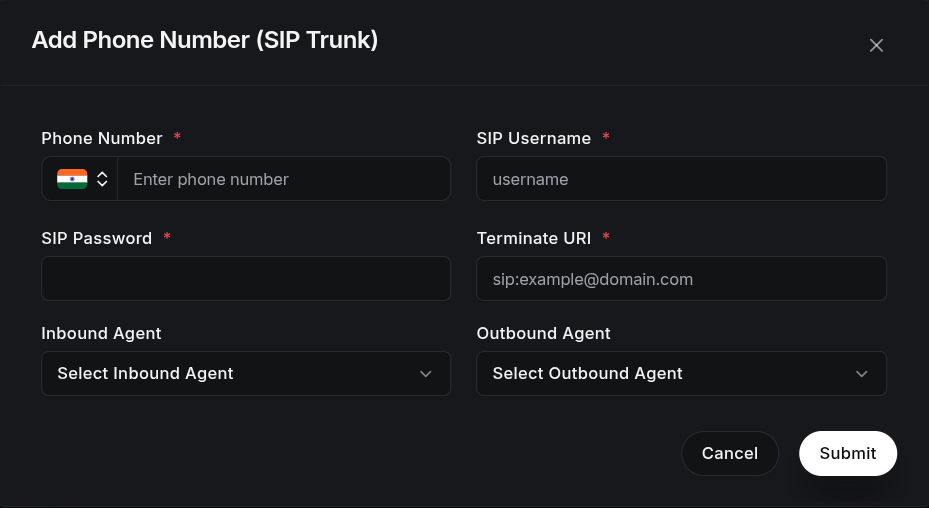
Adding a Phone Number
To set up a new SIP number in ScaleAI, fill in the details below. All fields are required:
1. Basic Information
- Phone Number: Pick your country from the flag dropdown and enter the full phone number. This acts as the unique identifier for the connection.
2. SIP Configuration
To connect securely with your phone company, provide the following details:
- SIP Username: The username your carrier gives you for authentication.
- SIP Password: The secure password for your SIP account.
- Terminate URI: The SIP address where calls should be directed (for example,
sip:example@domain.com).
3. Agent Assignment
Tell the system which agents should use this number. A number can handle both directions at once:
- Inbound Agent: Pick the agent that answers calls when customers ring this number.
- Outbound Agent: Pick the agent that makes calls from this number (for example, for Batch Campaigns).
Note: You must assign at least one agent (inbound, outbound, or both). You also need at least one active, published agent before you can complete this step.
Managing Phone Numbers
The list shows all your numbers with their current settings:
| Column | Description |
|---|---|
| Phone Number | The number itself (sortable). |
| Agent | The agent shown for the number. |
| Direction | Whether the number receives calls (Inbound), makes calls (Outbound), or does both. |
| Type | SIP (added by you) or TELEPHONY (from a provider). |
| Provider | The phone company behind the number (shown for telephony numbers). |
| Status | Whether the number is Active (can take calls) or Inactive. |
| Last Updated | When the number was last changed (sortable). |
Filter the list by search, Agent, Provider, Type, Direction, and use Show archived to bring deactivated numbers back.
Actions
- Edit: Update the number's agent assignments or SIP credentials.
- Activate / Deactivate: Turn the number on or off. Deactivating removes it from the active list; reactivate it later from the archived view.
- Add Webhook: Create a webhook scoped to this phone number, so your own systems get notified about its calls. A webhook is a way for ScaleAI to notify your own systems when something happens.