Audio & Voice
The Audio & Voice tab controls how your agent speaks and understands sound. Here you pick the language, the speech-to-text (STT) engine that turns spoken words into text, and the text-to-speech (TTS) engine and voice your agent speaks with.
This tab is disabled until you write an Agent Prompt (the instructions that tell your agent what to say) in the Agent Behaviour tab.
Language Settings
Select the primary language for your agent. This controls both transcription (STT) and voice output (TTS).
- The language list is searchable and paginated.
- Changing the language resets the selected STT and TTS providers. You must re-select them (or accept the auto-selected defaults).
- Based on the selected language, ScaleAI automatically suggests the default STT provider, TTS provider, and voice model to ensure optimal performance and pronunciation.
The Final Call Message in the Call tab is spoken in this same language.
Speech-to-Text (STT)
Turns the caller's spoken words into text during live calls. Your STT provider determines transcription accuracy, language support, and real-time performance. Choose one that matches your callers' languages and accents.
Set it up the same way as the AI model:
- Provider: the STT service (e.g. Deepgram, AssemblyAI, Sarvam, Cartesia, SmallestAI).
- Model: the specific transcription model.
- API Key: your credential (hidden when using ScaleAI credits).
- Schema fields: provider-specific settings (e.g. keywords, language hints) shown automatically.
Text-to-Speech (TTS)
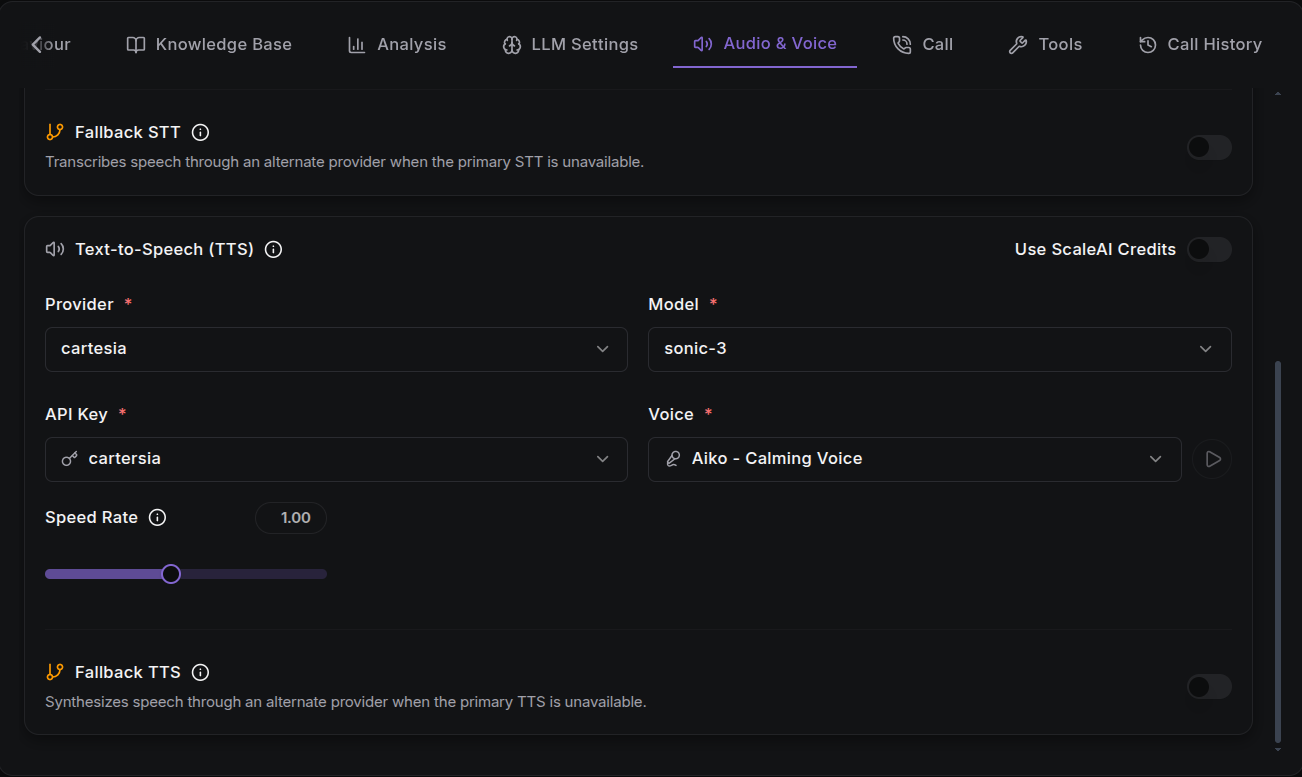
Turns the agent's written replies into natural-sounding speech. Your TTS provider affects voice quality, naturalness, latency (the delay between what a caller says and the agent's reply), and the overall caller experience.
Set it up the same way as the AI model, plus:
- Voice: the specific voice model to use. Voices are searchable by name or ID, show tags (gender, accent), and can be previewed with a play button.
If no voice is selected, the first available voice for the chosen TTS provider is auto-selected for you.
Voice Tuning
Some TTS providers offer extra voice-tuning sliders:
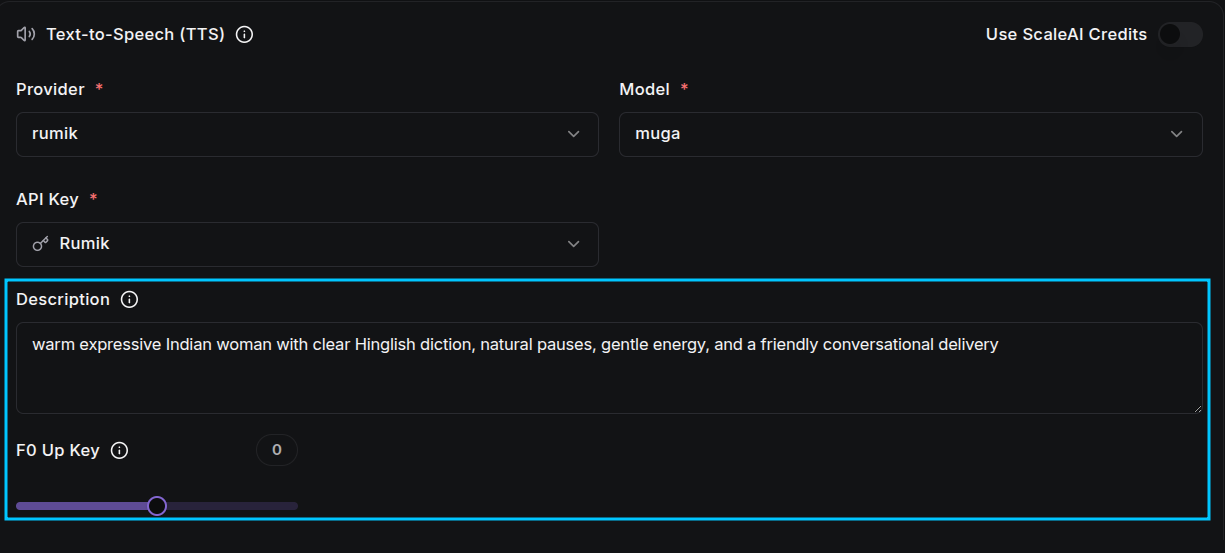
The exact set depends on the provider, but common ones include:
| Field | Description |
|---|---|
| Stability | How consistent the generated voice is. Lower values allow more varied and expressive speech; higher values produce more stable, predictable output. |
| Style Exaggeration | Adjusts the emotional intensity and expressiveness of the voice. |
| Speed Rate | Controls speaking speed. Lower values are slower; higher values make the agent speak faster. |
| Similarity Boost | How closely the generated voice matches the selected voice profile. Higher values sound more like the original model but may reduce variation. |
| Buffer Size | How much audio is buffered before playback. Smaller buffers reduce latency but may increase interruptions; larger buffers improve smooth playback at a slightly higher delay. |
Fallback STT & TTS
As with the AI model, both STT and TTS support a fallback provider that takes over if the primary fails mid-call:
- Fallback STT: turns speech into text through an alternate provider if the primary STT is unavailable, so the call can continue uninterrupted.
- Fallback TTS: produces speech through an alternate provider if the primary TTS fails, so your agent keeps speaking.
Switch each on, then set the provider, model, and voice just like the primary. The UI warns if you pick the same provider and model as your primary.
Use ScaleAI Credits
Each of STT and TTS can independently use ScaleAI Credits instead of your own API key. When enabled for a model type, the provider list switches to platform defaults and the API key field is hidden.
Voice Library
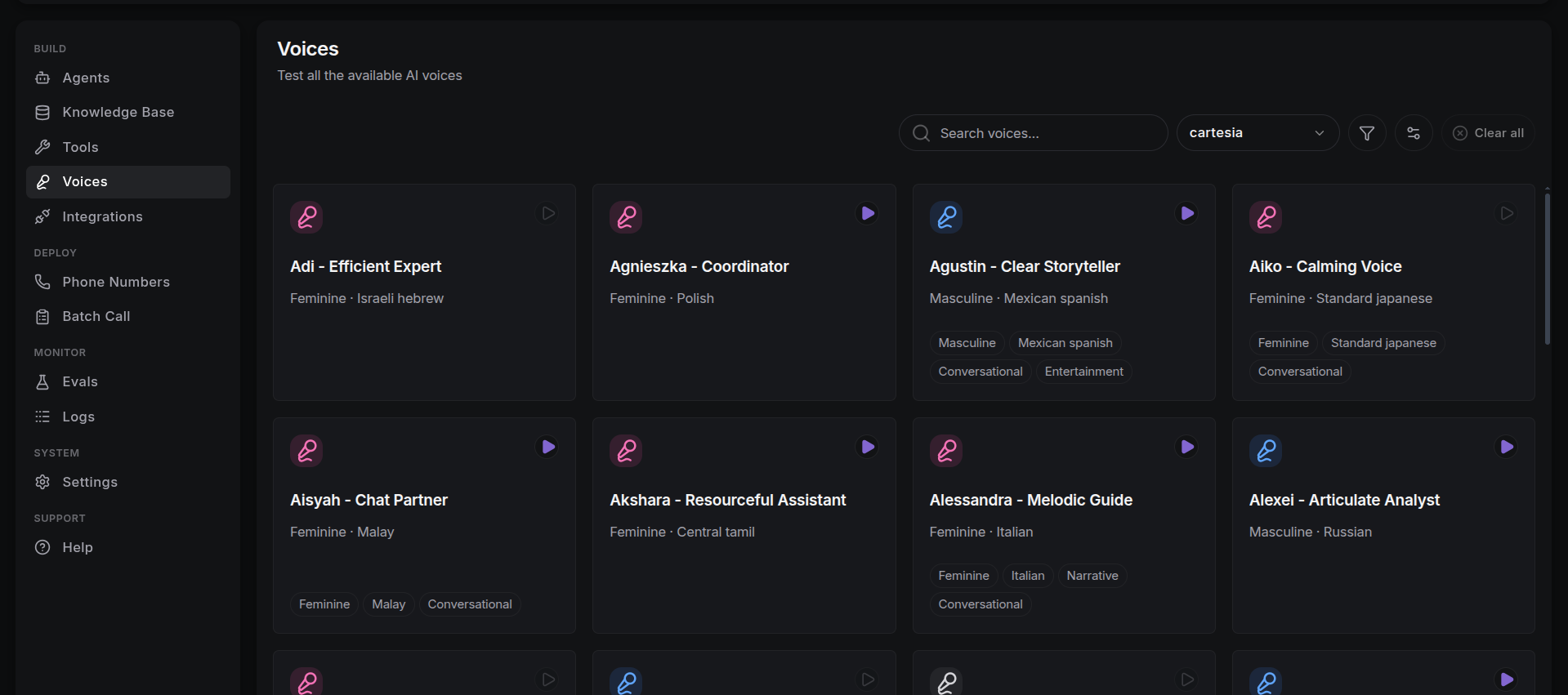
The Voices library contains all available synthetic voices for your agents. Since voice availability is tied to specific technology partners, your options vary based on which providers you have integrated.
Voices are also managed on the standalone Voices page, where you can easily view and filter the full voice library before assigning one to your agent.
Voice Attributes
Every voice in the library is categorized by these characteristics to help you find the right match for your brand:
- Voice Name: The unique identifier for the voice (e.g., "Bella", "Aiko", or "Charlie").
- Accent: Indicates the regional dialect or pronunciation style (e.g., US English, British, Australian, or Spanish).
- Gender: Categorized as Male, Female, or Non-binary to suit different conversational contexts.
Managing the Voice Library
Choose Providers Filter
Because voices are service-specific, the library includes a Choose Providers filter.
- Dependency: All voices are dependent on their respective providers (e.g., ElevenLabs, Cartesia, or OpenAI).
- Filtering: Select a specific provider from the dropdown to see only the voices that integration supports. If a provider's API key is not configured, its voices will not appear in the selection list.
Best Practices
- Preview Before Selection: Use the play icon next to each voice to listen to a sample of the accent and tone.
- Match Intent: Choose an accent and gender that aligns with your target demographic and the specific use case of the agent (e.g., a formal "Professional" voice for billing vs. a "Warm" voice for customer support).
- Check Latency: Some "Standard" voices are built for speed (low latency), making them ideal for fast, high-stakes conversations.
Next Steps
- Call tab: set the final message language, ambient sound, and noise cancellation.
- Integrations: add STT/TTS providers and credentials.
- Test the Agent: hear your voice configuration on a live call.