Knowledge Base & Guardrails
The Knowledge Base tab is where you give your agent the information it needs to answer questions accurately. It also lets you set up FAQs & Guardrails, which are fixed rules the agent must follow for specific topics.
This tab stays disabled until you write an Agent Prompt in the Agent Behaviour tab.
Knowledge Base
A Knowledge Base is the information your agent can draw on during a call. Connect your business documents, product manuals, or website content so your agent can give accurate, informed answers based on your own material.
Knowledge bases can also be managed from the standalone Knowledge Base page. There you can view and create all your knowledge bases in one place before linking them to an agent.
Creating a Knowledge Base
When you create a knowledge base, you give it a Name and an optional Description. These help you organize and identify each data set when you attach it to an agent.
Knowledge Sources
There are two ways to add information. Use the tabs in the Knowledge Source section to switch between them.
File Upload
Use this method for internal documents, structured data, or offline manuals.
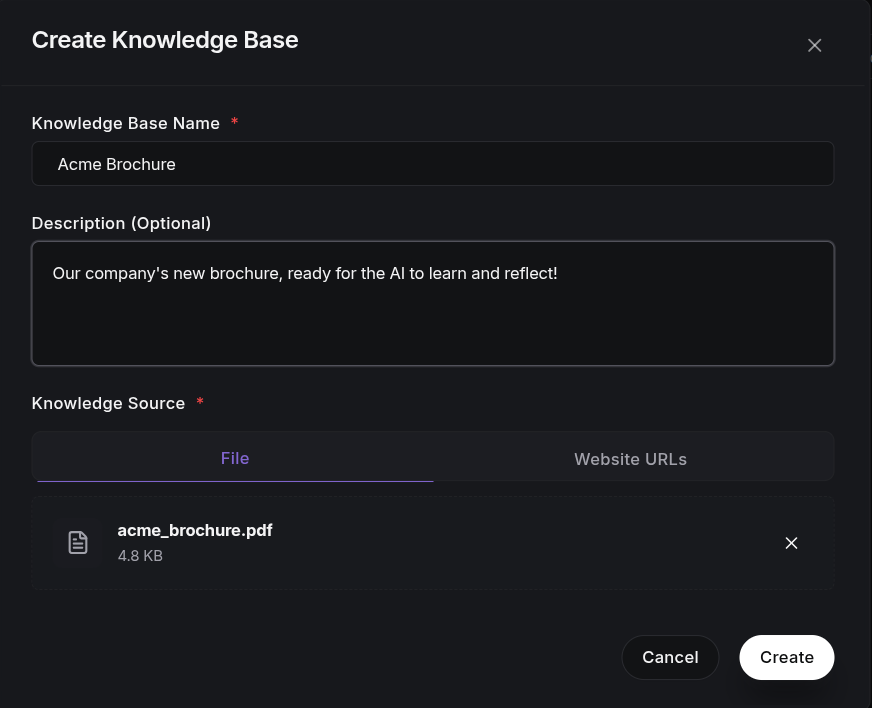
Features and limits:
- Drag-and-Drop: Move files from your desktop straight into the upload zone.
- Supported Formats:
PDF,TXT,DOC,DOCX, andCSV. - Size Limit: Files up to 50MB.
- Best For: Technical documentation, internal policy handbooks, and structured spreadsheets.
Website URLs (Web Scraping)
Use this method to pull information from your public website or help center.
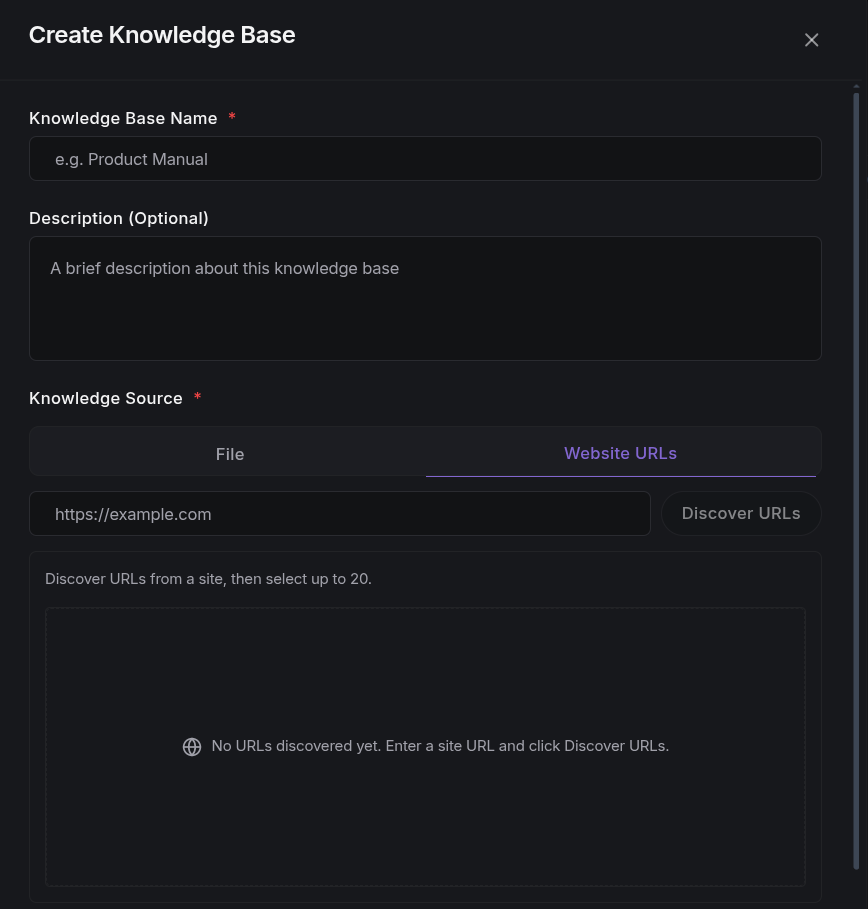
How it works:
- Discover URLs: Enter your website's main address (for example
https://example.com) and click Discover URLs. The system scans the site and lists the pages it finds. - Choose pages: Pick up to 20 pages from the list.
- Curate your content: This lets you leave out pages that don't help, such as "Contact Us" or "Privacy Policy", and focus on useful ones like "Product Features" or "FAQs".
- Best For: Content that changes often, such as help centers and marketing pages.
Attaching Knowledge Bases
- Click Add to see all active knowledge bases in your workspace.
- Select one or more. Your agent can reference several at once to cover more ground.
- Each attached knowledge base is listed by name. Use the trash icon to remove it.
- You can also create a new knowledge base from the Add menu, without leaving the agent page.
Reviewing and Managing Your Knowledge Base
Once a knowledge base exists, you can check its details and confirm the right sources were added.
Knowledge Base Details View
Click any knowledge base row to open a dedicated Details page. From there you can:
- Verify key info, such as Name, ID, Description, Created At, and Updated At.
- Review sources and see whether each one is a file or a website.
- Open sources quickly through the website link or file download, when available.
- Spot missing content if the list is empty, so you know to add sources later.
URL Import Summary (Web Scraping)
If you create a knowledge base from website URLs, a summary appears after creation:
- Successful and failed URLs show you which pages were stored.
- Compact lists show up to 5 URLs per section with a "+N more" indicator.
- Import type label confirms the source was Website URLs.
Helpful Reminders
- Switching source types clears the previous selection, so you always start fresh.
- URL limit is 20 pages; keep only the most relevant ones.
Best Practices
- Document quality: For file uploads, make sure the text is clear and readable. Scanned images of text cannot be read unless the text has been converted to searchable text first.
- Pick relevant pages: When using website URLs, choose only pages related to the agent's job. Extra or unrelated content can distract the agent and lead to off-topic answers.
- Update regularly: Knowledge bases are a snapshot. If your website changes or you release a new manual, refresh the source or scrape the URLs again.
Real-World Example
Say you run a dental clinic and want your agent to answer appointment questions. Here is how you'd set it up:
- Upload your policy document: Add a file with your booking rules, cancellation policy, and opening hours.
- Scrape your website: Discover your website's pages and pick the ones that matter, such as "Our Services" and "FAQs", while leaving out "Contact Us" and "Careers".
- Attach both sources to the agent.
Now a caller can ask "Do you have any slots on Friday?" and the agent answers from your actual policy, not from guesswork.
FAQs & Guardrails
Guardrails are boundaries you set for your agent. They let you decide exactly how the agent handles certain topics or situations, with a fixed, consistent answer.
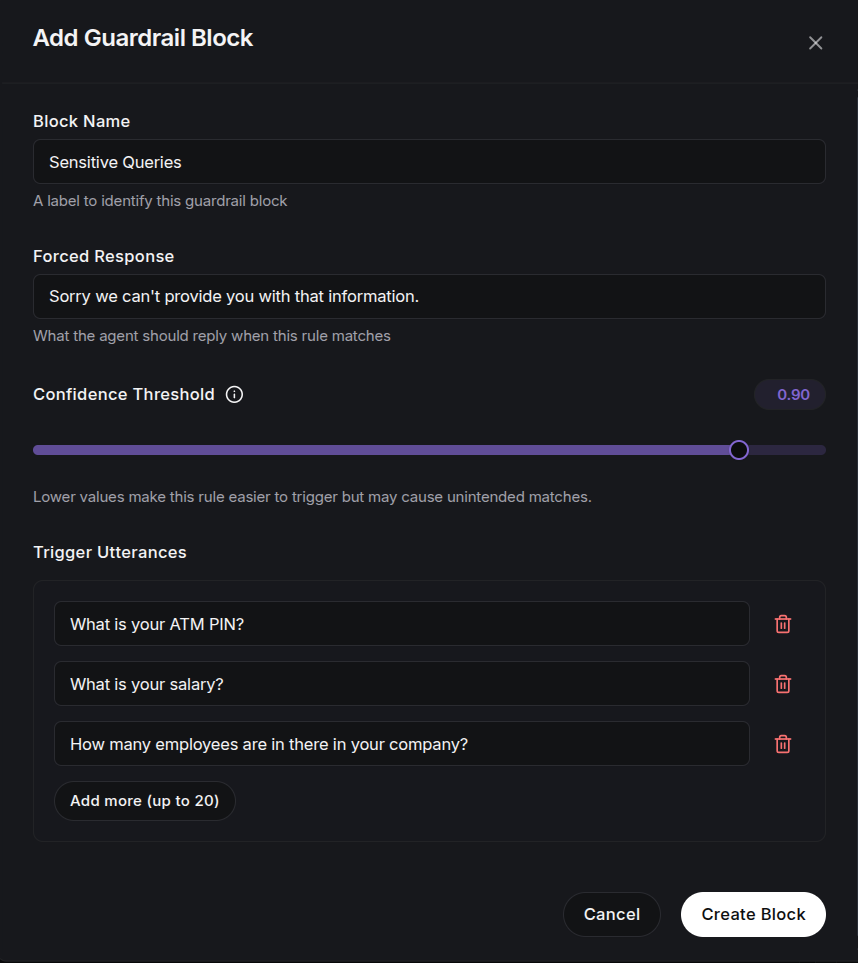
Each guardrail is a block with trigger phrases and a forced response. When a caller says something that matches a trigger, the agent must reply with that block's forced response.
Creating a Guardrail Block
Each block has these parts:
Block Name
A clear name for the rule, such as "Billing Dispute" or "Refuse Discounts". This helps you find and manage the rule later.
Forced Response
The exact words the agent must use when the guardrail is triggered. This keeps the agent on-brand and compliant for sensitive or regulated topics.
Confidence Threshold
A slider from 0 to 1 that controls how closely the caller's words must match your trigger phrases.
- Lower values (near 0): The guardrail triggers more easily.
- Higher values (near 1): The match must be more exact before the guardrail activates.
Trigger Utterances
Sample phrases that represent what a caller might say to trigger this rule. The more varied examples you provide, the better the agent understands the intent behind different ways of saying the same thing. You can add up to 20 phrases per block.
Managing Guardrails
- Edit a block: Click an existing block to change its name, response, threshold, or phrases.
- Delete a block: Use the trash icon next to a block.
- Add a new block: Use the "Add a new block for FAQs & Guardrails" button.
Best Practices
- Be specific: Keep trigger phrases distinct so rules don't overlap with each other.
- Test your thresholds: Use the test agent simulator to find the right confidence setting for your rule, usually between 0.7 and 0.85, to avoid false triggers.
- Review responses: Update forced responses regularly to match current policies or promotions.
Next Steps
- Guardrails — a dedicated reference for guardrail setup.
- Agent Prompt — tell the agent when to use its knowledge base.
- Test the Agent — verify guardrails trigger correctly on a test call.