Outbound Call
The Outbound Call feature lets you start calls with your AI agent. You can place calls using either a SIP Trunk connection or a Telephony Provider integration.
This feature is useful for:
- Testing agent conversations
- Placing outgoing calls
- Simulating real-world call flows
- Passing runtime variables to the agent
You can open the Initiate Call window from the Agents page (the agent is pre-selected) or from the Agent Batches page header.
Prerequisite: the agent must be active. If the agent is inactive, the button is disabled until you activate it.
SIP Trunk Call
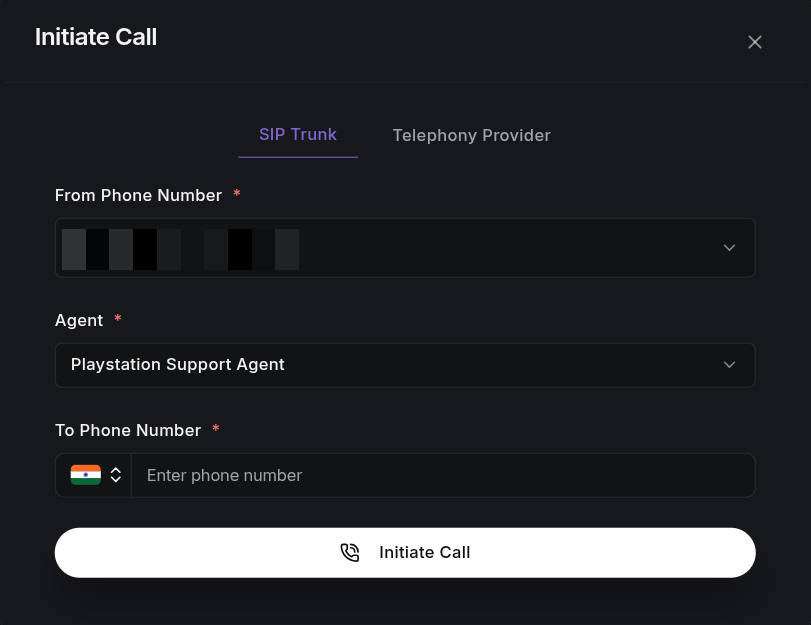
A SIP trunk call places calls through your connected SIP numbers. SIP is the standard that carries phone calls over the internet. The call comes from a configured phone number and connects to the destination number.
Call Configuration
When starting a SIP trunk call, configure the following fields:
-
From Phone Number
Choose the phone number that will place the call. Selecting it auto-selects the agent bound to that number (the outbound agent, or the inbound agent if no outbound agent is set). -
Agent
Choose the agent that will handle the conversation. It unlocks after you pick a from-number. Only active agents are listed. -
To Phone Number
Enter the destination phone number where the call should go. -
Agent Variables
Enter values for any dynamic variables used in the agent's prompt or welcome message. These are filled in when the call runs.
Initiating the Call
Click Initiate Call to start the call.
The system dials the destination number through the selected SIP trunk and connects it to the agent.
Telephony Provider Call
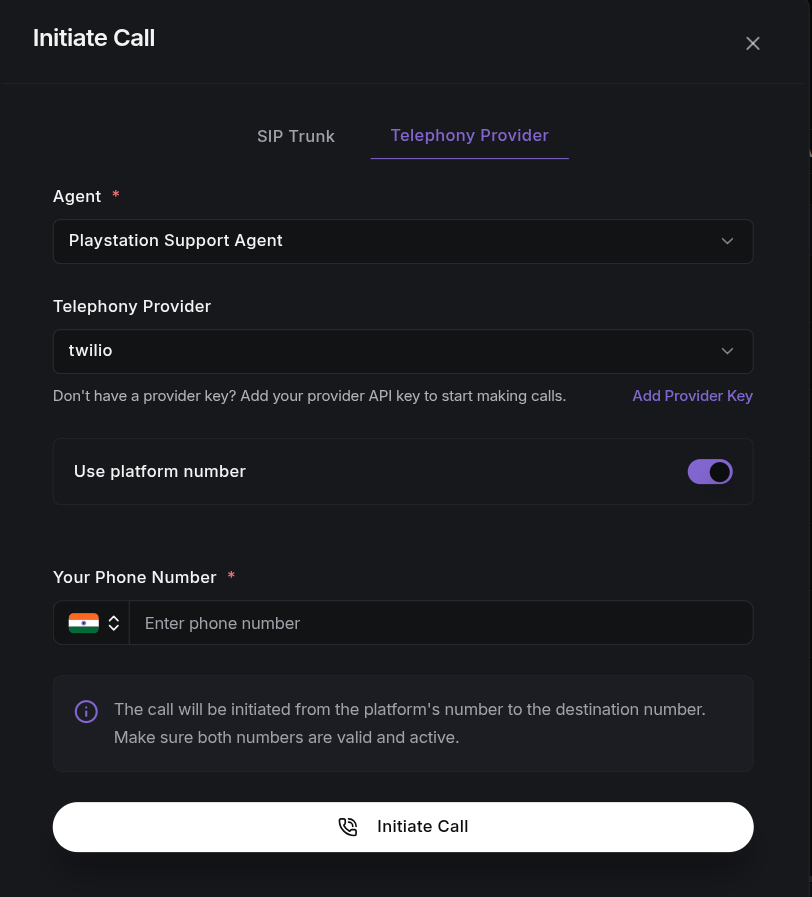
You can also place calls through a supported telephony provider such as Twilio. A provider is the phone company that carries your calls.
Call Configuration
When using a telephony provider, configure the following options:
-
Telephony Provider
Choose the provider that routes the call (for example, Twilio). This field is required. If you haven't connected a provider yet, use the Add Provider Key link to connect one from the Integrations page. -
Agent
Choose the agent that will handle the conversation. Only active agents are listed. -
Use Platform Number
Turned on by default. The call goes out from a ScaleAI-managed number, so you don't need to choose a from-number. Turn it off to pick your own number below. -
From Phone Number
Shown only when Use Platform Number is off. Pick from the provider's active numbers. Use the refresh icon to pull in the latest numbers from the provider. -
Your Phone Number
Enter the phone number where you want to receive the call. -
Country Selector
Use the flag dropdown to apply the correct country dialing code automatically. -
Agent Variables
Enter values for any dynamic variables used by the agent during the conversation.
Initiating the Call
Click Initiate Call to place the call.
The call is made through the selected provider, from the platform-managed number (or your chosen number) and connected to your device. On success, you are taken to the Call Logs page filtered to that call.
Agent Variables
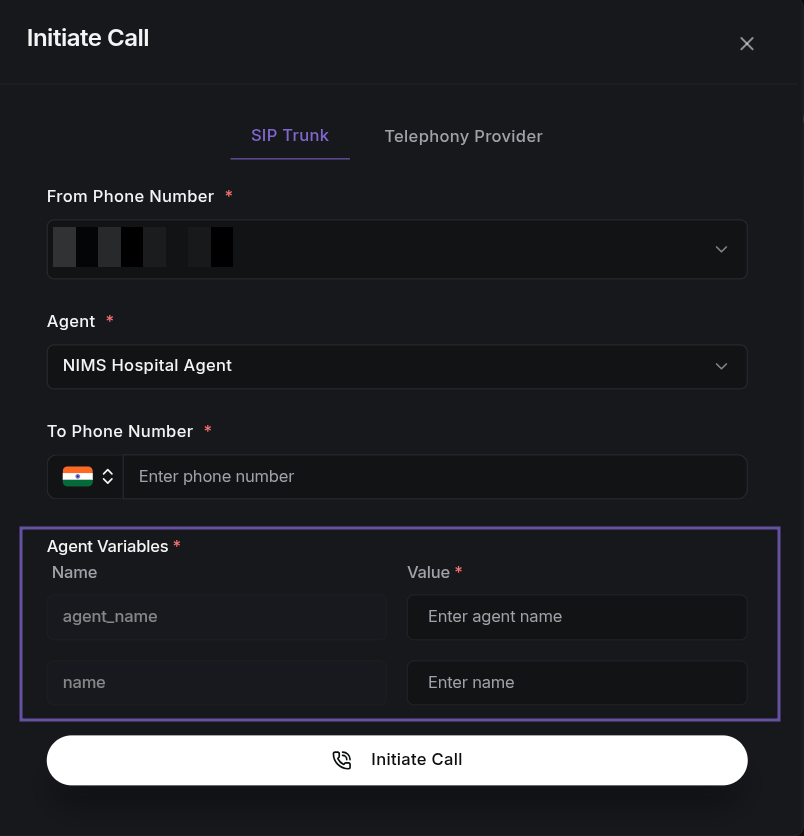
If the selected agent uses dynamic variables in its configuration (for example in the Prompt or Welcome Message), those variables appear automatically in the Agent Variables section.
Variables come in two kinds:
- System variables: filled in automatically by the system (for example, the source number, destination number, or call direction). No action needed.
- User variables: your own placeholders (for example
{{customer_name}}). You must enter a value for each one before starting the call so the agent can personalize the conversation.
Notes
- Make sure the destination phone number is valid and active.
- Check that your telephony provider account has enough credits.
- Make sure the selected agent is set up with voice and prompt settings before starting a call.