Call Logs
The Logs section is where you see what your agents are doing. Open it from the sidebar and switch between three tabs at the top:
- Call: every call handled by your agents, across all agents and batches.
- Function: every action your agents take during calls, such as calling your API or transferring a caller.
- Webhooks: webhook subscriptions and the history of every delivery (workspace owners only).
The tabs keep any active batch filter, so you can switch between Call, Function, and Webhook logs for the same campaign.
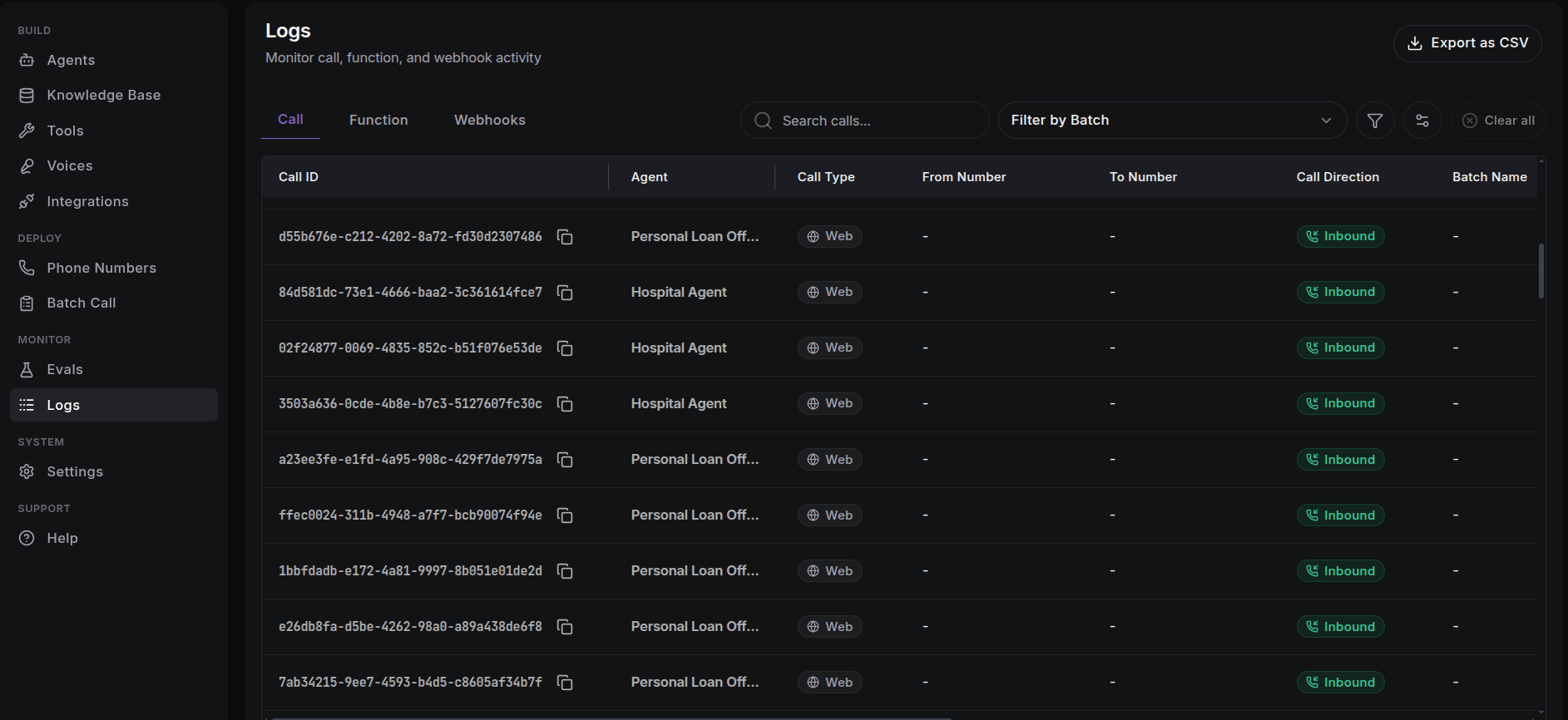
Call Log Table
Each row in the Call tab represents one call:
| Column | Description |
|---|---|
| Call ID | Unique identifier for the call. Click to copy. |
| Agent | The agent that handled the call, with its version (e.g. Support Agent · v3). |
| Call Type | How the call was connected: Telephony (a phone line), SIP (a phone line over the internet), or Web (a browser-based test call, shown with a globe icon). |
| From Number | The caller's phone number. |
| To Number | The number the agent answers for incoming calls, or calls for outbound ones. |
| Direction | Inbound or Outbound (whether the call came in or went out), with direction icons. |
| Batch Name | The batch campaign the call belongs to, if any. |
| Provider | The phone company that carried the call. |
| Final Charge | The billed cost of the call. A pulsing clock icon means the cost is still being calculated. |
| Connected At | When the call was connected (sortable). |
| Ended At | When the call ended (sortable). |
| Status | Colour-coded badge: Initiated, Ringing, In Progress, Completed, Failed, Missed, or Ongoing. |
| Duration | How long the call lasted. |
| Action | Recall button for outbound calls (if enabled on your workspace) to redial the same number. |
Filtering & Export
Refine the table with these filters:
- Search: free-text search across calls.
- Call Status, Direction, and Call Type dropdowns.
- Provider: filter by phone provider (searchable; results split into pages).
- Agent: filter by agent (searchable; results split into pages).
- Batch: filter by batch campaign, or open the Logs tabs from a batch page with that batch already selected.
- Date Range: from/to date picker.
Use Export as CSV in the header to download the current rows. Phone numbers are formatted internationally, timestamps are shown in your locale, durations are humanized, and any structured output data is expanded into simple columns in the CSV.
Call Details Drawer
Click any row to open the details drawer. The header shows the call's cost, duration, and actions:
- Recall: redial the number (outbound calls, when enabled).
- Export PDF: download a full call report (available once the call completes and post-call processing finishes).
Recording
An integrated waveform player lets you listen to the full conversation audio. While a call is still live, the recording is replaced by a live transcript; the recording, summary, and charge appear after the call ends.
Live View
For active calls (Initiated, Ringing, In Progress), the drawer streams a live transcript turn-by-turn in real time, so you can watch the conversation as it happens and spot delays or recognition issues before the call completes. See Transcripts & Monitoring.
Post-Call Processing
Immediately after a call ends, ScaleAI runs post-call analysis (recording, summary, billing). A Processing call data indicator shows progress in real time, with placeholders for each section while it loads. If processing fails, a banner flags the call so you know the summary and charge may be unavailable.
Tabs
Transcripts
A written record of the conversation, shown in order with a timestamp for each message. Open the maximize button for a full-screen reading view.
Analysis
- Summary: an AI-generated recap of the conversation.
- Sentiment: an automated assessment of the caller's mood (shown as a badge next to the summary).
- Structured Output: the structured data (JSON) the agent extracted according to your analysis configuration. See Analysis Config.
Function Calls
Every action the agent took during this call (such as an API call or a transfer), with status, execution time, and a details drawer. See Function Logs.
Call Details
Full details tiles: agent (name, version, ID), status, direction, call type, from/to numbers, when the call connected and ended, duration, Ended By, Termination Reason, and whether Voicemail was detected.
Webhooks
Webhook deliveries triggered by this call. See Webhook Logs.
Cost
The final charge and duration, for billing verification.
Link Directly to a Call
Each call has its own web address. Opening /logs/call?call_id=<id> loads the table with that call's drawer already open. Adding ?batch_id=<id> keeps all Logs tabs scoped to one batch. This makes it easy to bookmark a call, share it, or jump straight to it from a batch report.
Usage Tips
- Filter by Status: quickly find
FailedandMissedcalls to troubleshoot connection or provider issues. - Monitor Sentiment: open calls with negative sentiment for follow-up.
- Review batches: use the Batch filter (or a direct link to a batch) to review an entire campaign in one place.
Next Steps
- Function Logs: inspect every action taken across calls.
- Webhook Logs: audit webhook deliveries (owners).
- Transcripts & Monitoring: live transcripts and session monitoring.
- Call History: the per-agent call log inside the agent builder.