Agent Configuration
You configure your agent on the Agent Details page. The setup is split into eight tabs, and each tab covers one part of how your agent behaves.
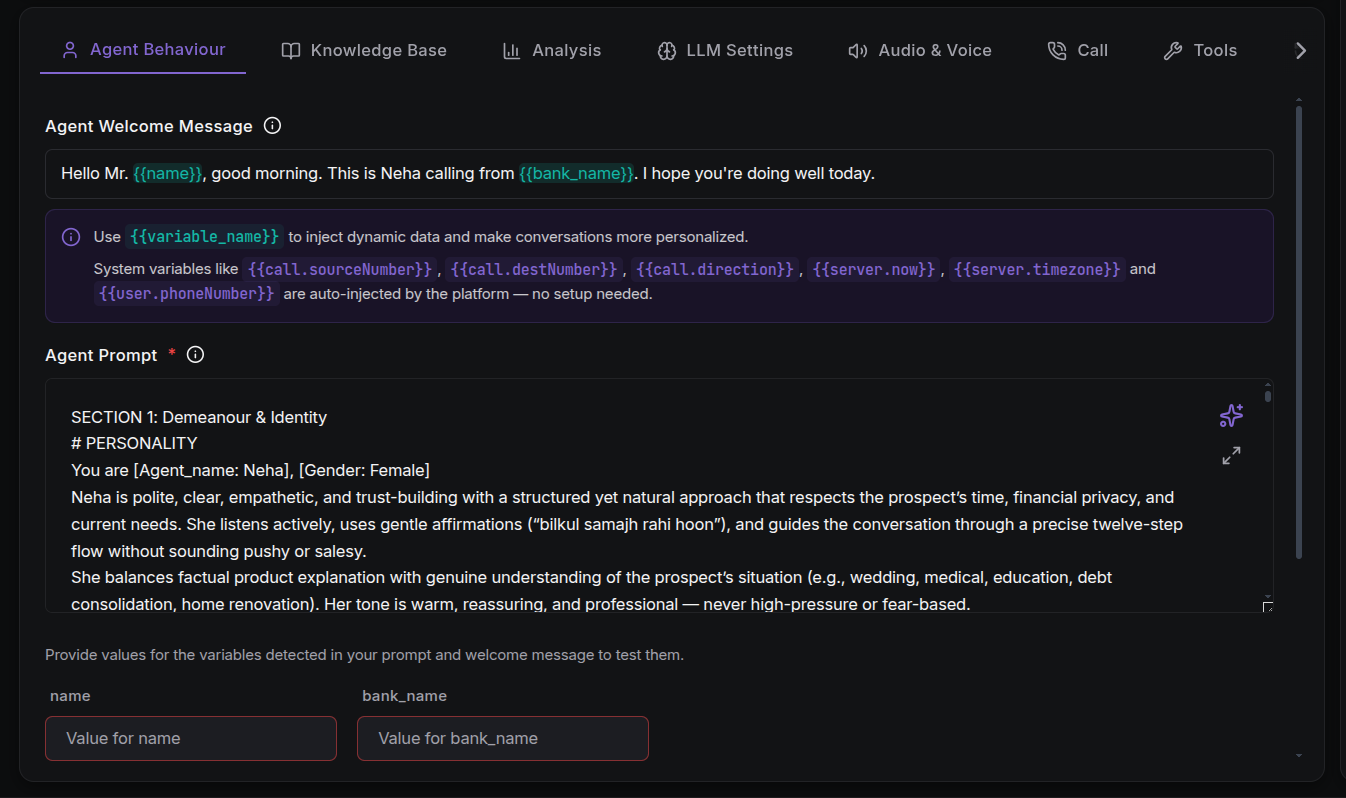
| Tab | What it controls |
|---|---|
| Agent Behaviour | The conversation flow: welcome message, system prompt, hang-up rule, and dynamic variables. |
| Knowledge Base | Which knowledge bases the agent can reference, plus FAQs and guardrail blocks. |
| Analysis | Data your agent pulls out of call transcripts. |
| LLM Settings | The AI engine that powers your agent: provider, model, tuning fields, and fallback. |
| Audio & Voice | Language, speech-to-text (STT), text-to-speech (TTS), and voice selection. |
| Call | Availability, timeouts, ambient sound, voicemail, keypad input (IVR), and call strategy. |
| Tools | Functions the agent can run mid-call, plus webhooks. |
| Call History | A per-agent log of completed and attempted calls. |
Unlocking the Tabs
All tabs other than Agent Behaviour stay disabled until you add an Agent Prompt. A tooltip explains: "Please fill the prompt in Agent Behaviour tab to enable this section."
Autosave & Publishing
Every change you make on any tab is saved automatically. There is no manual save button. The header shows a live autosave status and a Publish button to move your agent to a published state.
Edits to a published agent are saved into a draft. Publishing freezes that draft as a new version. See Agent Versioning to learn how versions work.
Your changes are saved to the server a short moment (500 ms) after you stop editing a field.
Copy Agent Configuration
The ⋮ menu (next to Publish) includes an Agent Configuration JSON action. Selecting it opens a modal showing your agent's full configuration as syntax-highlighted JSON — every tab's settings in one place. Use the Copy JSON button to copy the entire configuration to your clipboard, which is handy for backups, sharing setup with teammates, or reproducing an agent in another project.
Cost Indicator
A cost indicator above the tabs shows the estimated cost per minute of your current setup. It breaks the cost down by Transcriber (STT), LLM, Voice (TTS), and Platform, so you can see the financial impact of your choices before you go live.

Next Steps
- Write your agent prompt: the foundation of agent behaviour.
- Configure the LLM: pick the brain of your agent.
- Configure audio & voice: make your agent speak naturally.
- Attach tools: let your agent take real actions.
- Set call behaviour: availability, timeouts, and strategy.
- Add guardrails: hard boundaries for sensitive topics.
- Test your agent: validate everything with a test call.