Batch Call
The Agent Batches page lets you upload a CSV file (a simple spreadsheet file) of contacts and run outbound calls at scale through a chosen agent. It is ideal for marketing campaigns, reminders, and large-scale outreach.
Click any batch row to jump straight to Call Logs, filtered to that batch's calls.
Managing Your Batches
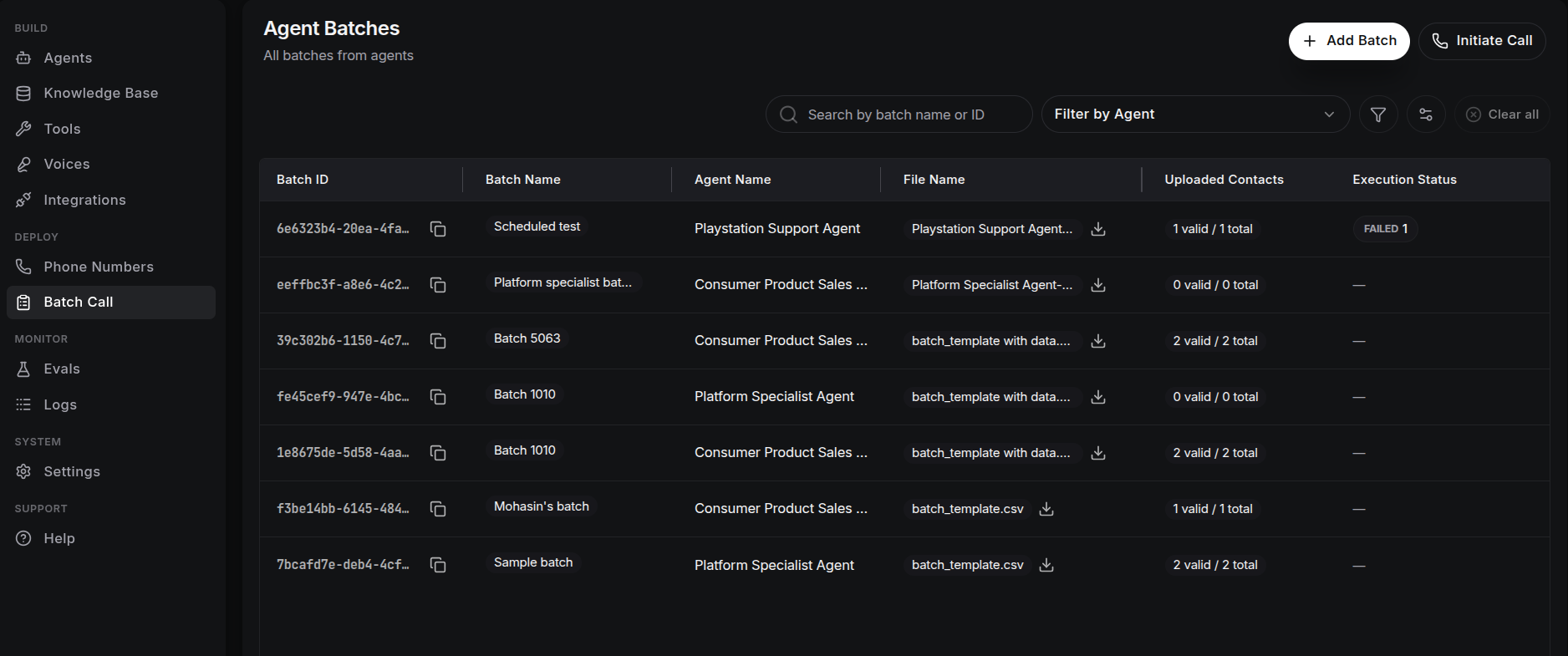
Batch Table
Each row shows:
| Column | Description |
|---|---|
| Batch ID | Unique identifier. Click to copy. |
| Batch Name | The name you gave the batch when you created it. |
| Agent Name | The agent that handles the batch's calls. |
| File Name | The uploaded CSV. Includes a download button to get your original file back. |
| Uploaded Contacts | Valid vs. total rows read from the CSV. |
| Execution Status | Per-call progress badges (see below). |
| Batch Status | Overall campaign state, or the scheduled run time for scheduled batches. |
| Created At | When the batch was created (sortable). |
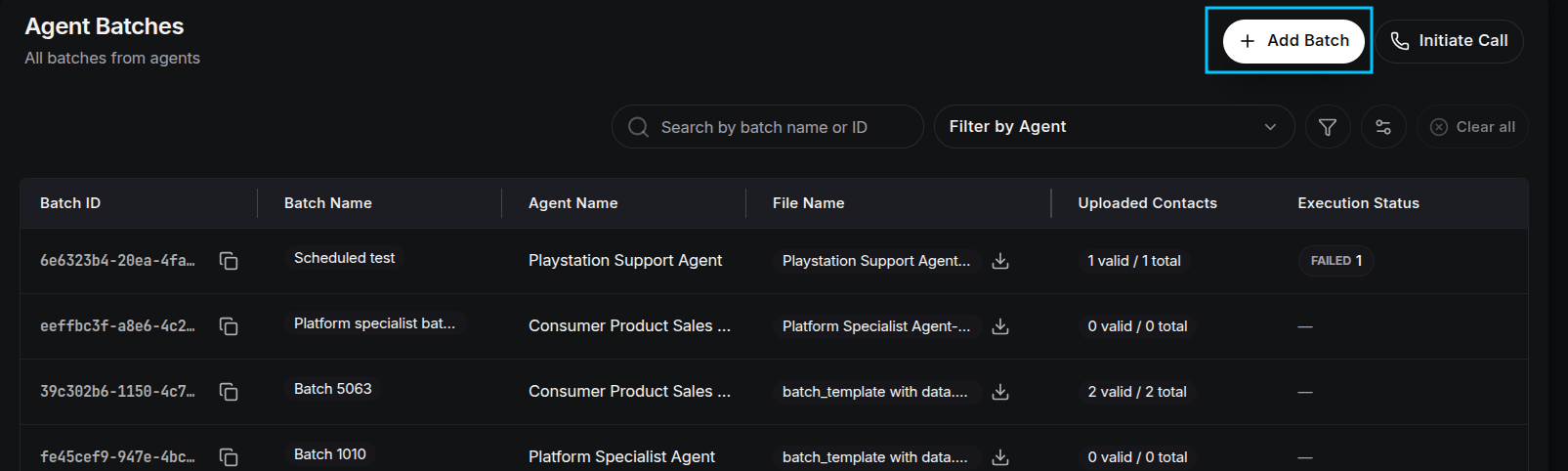
Filter the list by batch name or ID (search), Agent, Batch Status, and Date Range. Use Initiate Call in the header to place a single outbound call, or Add Batch to create a new batch.
Execution Status Definitions
Each batch tracks the progress of uploaded contacts through several states:
- Initiated: The total number of calls queued for the system.
- Ringing: Calls currently being connected.
- In Progress: Active conversations between the agent and the contact.
- Completed: Calls that reached a finished state successfully.
- Failed: Calls that could not be placed (for example, an invalid number format).
- Missed: Calls the recipient did not answer.
Batch Statuses
The overall state of a campaign falls into one of:
- Draft: Created but not yet running (never started, or stopped before starting).
- Scheduled: Queued to start at a specific date and time (shown on the row).
- Running: The batch is currently active and placing calls.
- Finished: All contacts in the CSV have been processed.
- Failed: The batch hit a system-level error or formatting issue.
- Cancelled: The run was stopped manually by the user.
Batch Actions
From the table, you can manage each batch:
- Stop: Stop a running batch (asks for confirmation). Stopping marks the batch as Cancelled.
- Run Now: Start a draft or scheduled batch immediately. Not available for cancelled, finished, or failed batches.
- Edit Webhook: Update the batch's webhook. A webhook is a URL that automatically receives updates about your batch. This action is only available while the batch is still scheduled and only if the batch already has a webhook.
- Download: Export the processed call results for the batch. The download is only available once the batch has finished processing and results are ready.
- Delete: Permanently remove a batch record from your history.
How to Use Batch Call
Click Add Batch to open the Upload Batch drawer:
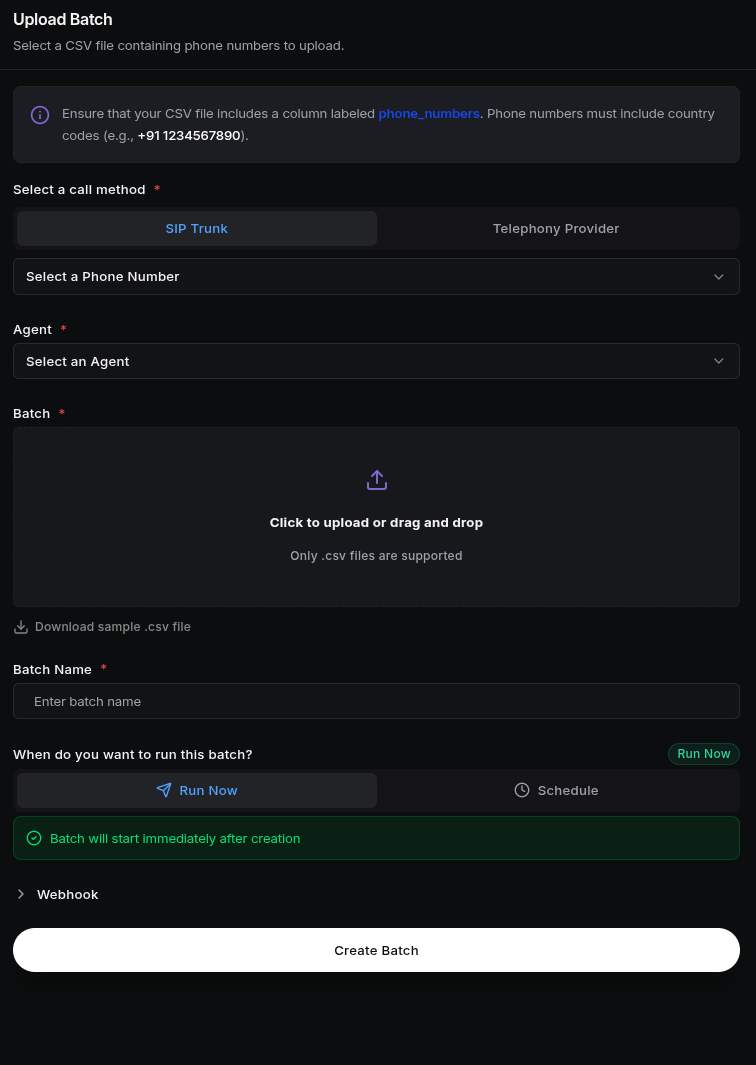
1. Choose Call Method
Select how you want to make calls:
-
SIP Trunk: Place calls through your configured SIP numbers. SIP is the standard that carries phone calls over the internet.
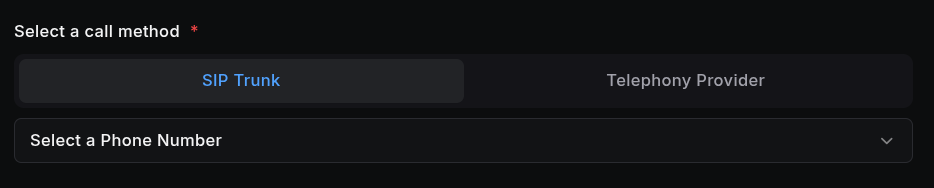
- Requires selecting a Phone Number (shown with its SIP user).
- If you haven't picked an agent yet, choosing a number auto-selects the agent bound to it.
-
Telephony Provider: Place calls through an outside provider (for example, Twilio). A provider is the phone company that carries your calls.
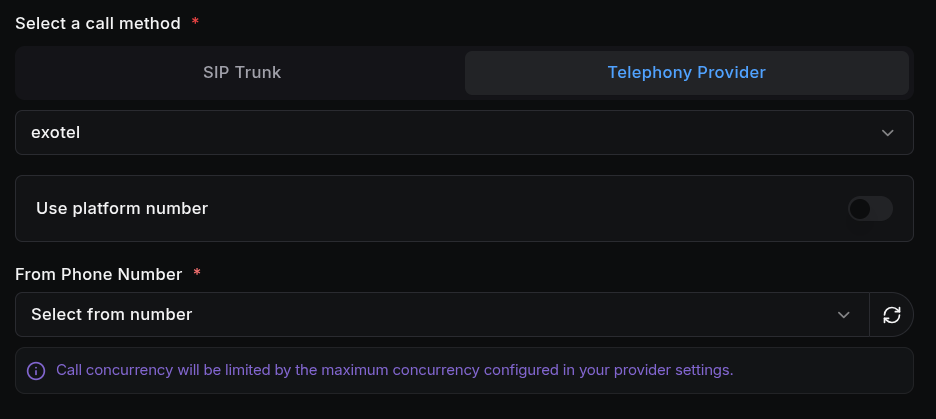
- Requires selecting a Telephony Provider (the first available provider is pre-selected).
- Use ScaleAI number (default): calls go out from a number managed by ScaleAI, and how many calls run at once is managed by ScaleAI.
- Turn the toggle off to pick your own From Phone Number from the provider's active numbers. How many calls run at once is then limited by the maximum set in your provider settings.
2. Select Agent
Choose the agent that will handle the calls using its configured voice, behaviour, and logic. Only active agents are listed.
3. Upload CSV File
Click to upload or drag and drop your CSV (.csv files only):
- CSV Requirements: Your file must include a column labeled
phone_numbers, and numbers must include country codes (for example,+91 1234567890). Rows that are missing or invalid are counted separately and skipped during execution. - Dynamic Variables: If your agent prompt uses user variables (for example,
{{customer_name}}), add each one as a separate column header that matches the exact variable name. - Sample template: after selecting an agent, use Download sample .csv file to get a template with that agent's
phone_numberscolumn and every user variable found in its prompt. The file is named<agent-name>-template.csv. It contains the column headers only, ready to fill in with your contacts.
4. Name the Batch
Give the batch a name. It appears in the batch list and call logs.
5. Execution
Choose when you want the batch to run:

- Run Now: starts the batch immediately after creation.
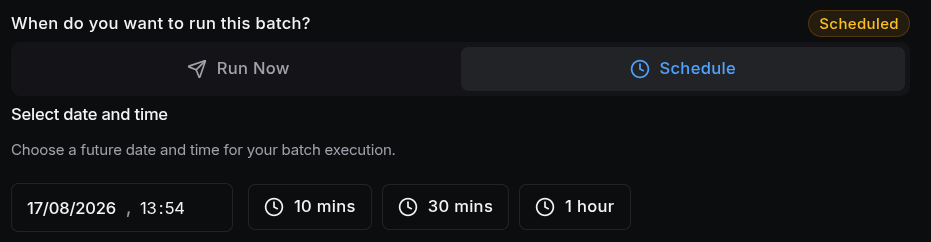
- Schedule: pick a future date and time for the batch execution.
When scheduling, quick presets are available: 10 mins, 30 mins, and 1 hour from now. The selected time must be in the future: past times are rejected with a validation error.
6. Optional Webhook
Expand the Webhook section to receive batch updates in real time:
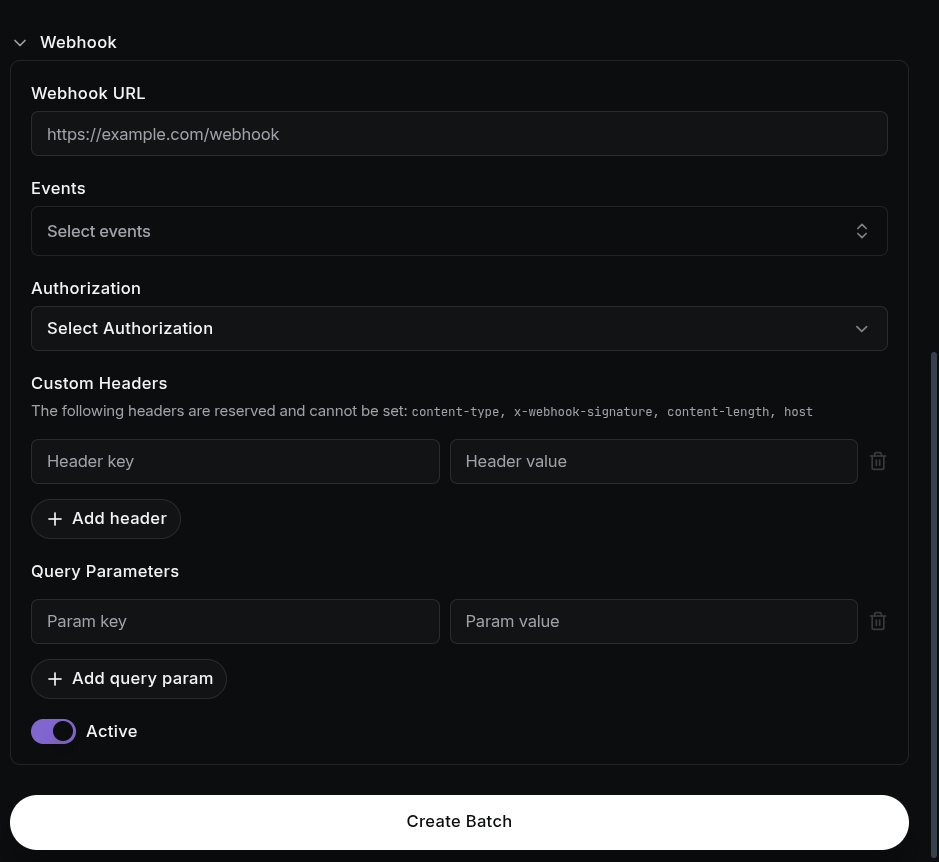
- Webhook URL: the URL that receives the updates.
- Events: multi-select of available batch events, including batch started, batch completed, and batch failed.
- Authorization: optionally attach a saved server credential, or create a new one inline.
- Custom Headers: extra headers to send. Reserved headers (
content-type,x-webhook-signature,content-length,host) cannot be set. - Query Parameters: extra query params added to the URL.
- Active: toggle the webhook on or off.
The webhook is optional. If you leave both the URL and events empty, the batch still runs normally without a webhook.
Click Create Batch to finish. You can edit the webhook later from the batch list while the batch is still scheduled.
Best Practices
- Use the sample template: it guarantees your column headers match the agent's prompt variables exactly.
- Validate Data: make sure your CSV is correctly formatted and numbers include country codes before uploading.
- Timezones: the scheduled time is based on your local timezone.
- Check contact validity: review the "valid / total" count after upload. Invalid rows are skipped during execution.
- Webhook Integration: use webhooks to push results into your CRM or backend systems.