API Authentication
Create a secret key in the ScaleAI dashboard and use it as a Bearer token on every API request.
All ScaleAI API requests are authenticated with a secret key sent as a Bearer token. Keys are scoped to a single project, so pick (or create) the project you want to integrate before you start.
Create a secret key
- Open Settings, go to Projects, and open the API keys page for your project.
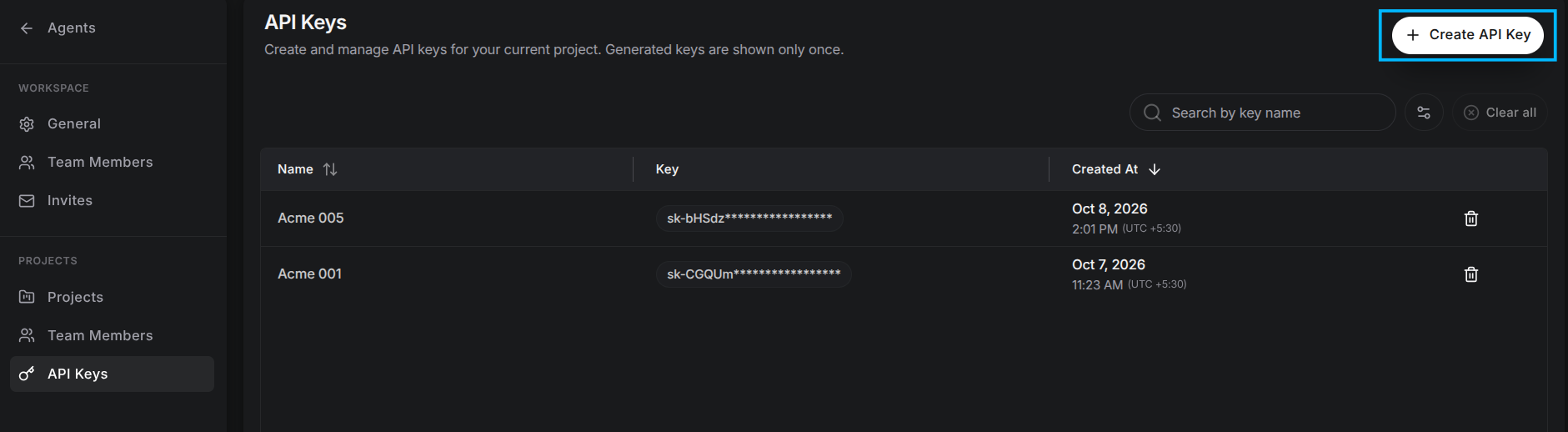
- Click Create API Key. Creating keys is restricted to owners — you must be a workspace owner or an owner of the current project.
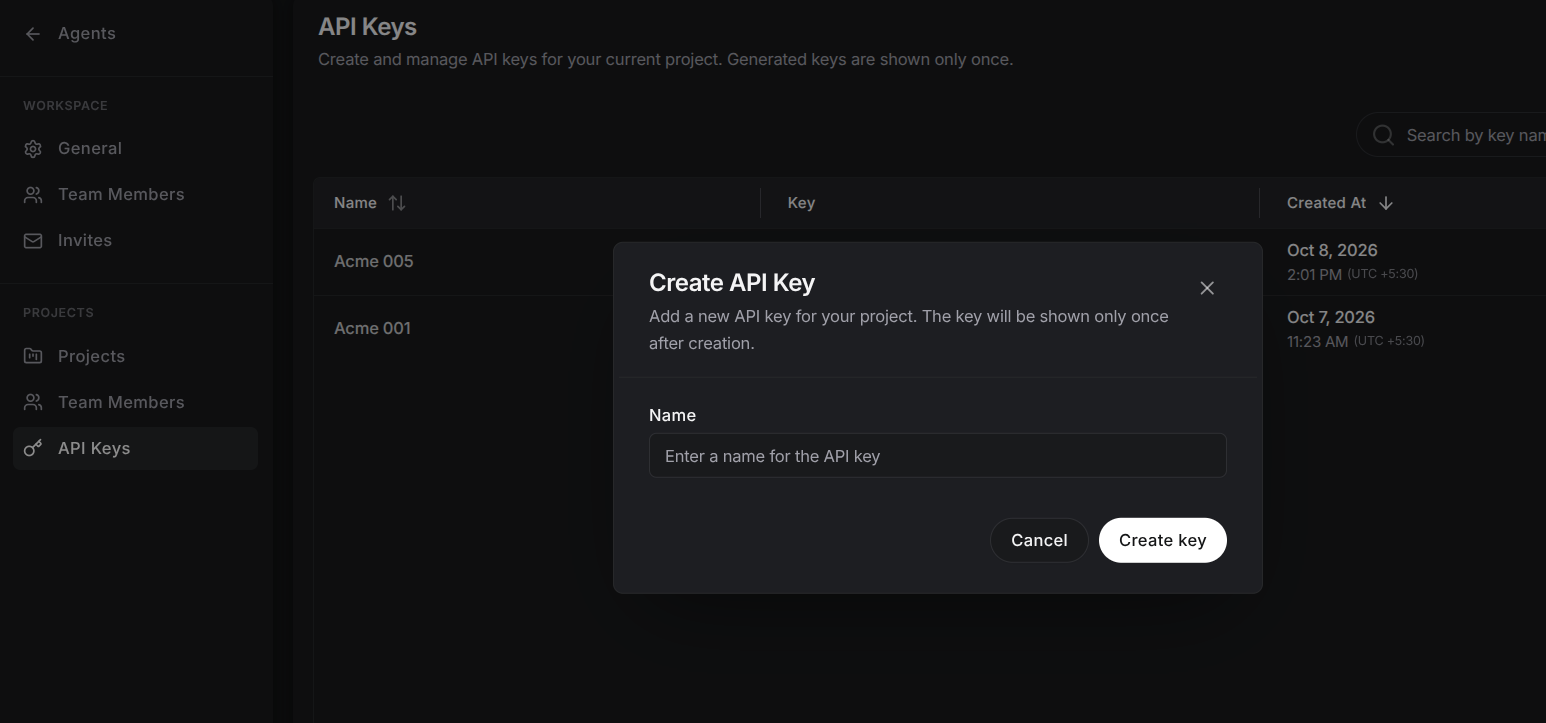
- Give the key a descriptive name (required, up to 100 characters), for example the integration or environment it belongs to, then click Create key.
- An API Key Created dialog shows the full key. Copy it immediately with the copy button and store it somewhere safe, such as a secrets manager.
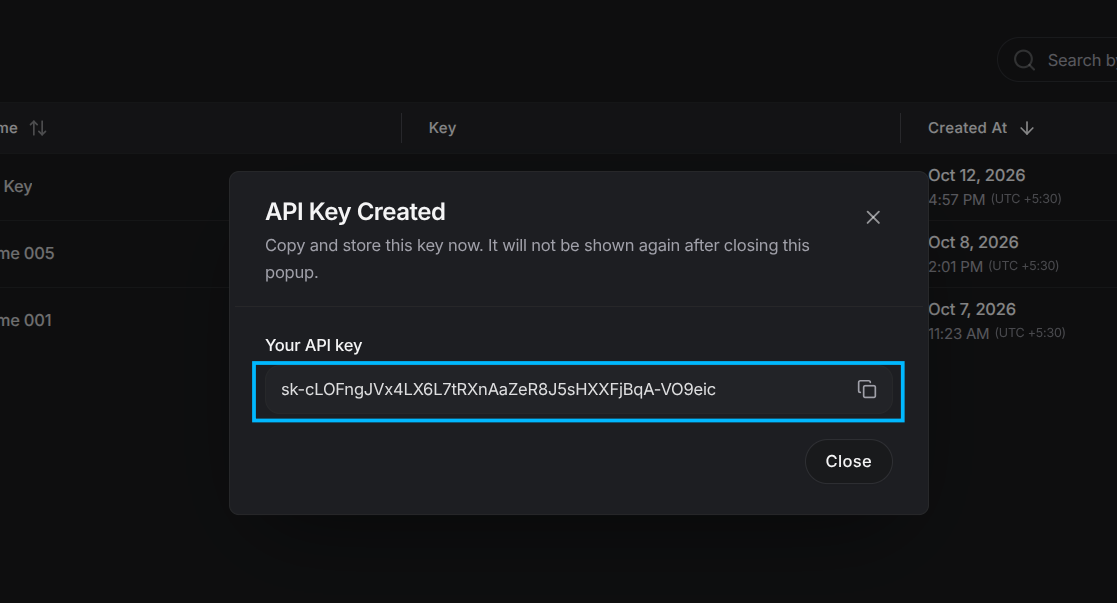
The full key is shown only once. Afterwards the dashboard lists only a masked prefix (plus the name and creation date), and the complete value can never be retrieved again. If you lose it, delete the key and create a new one.
Use the key
Send the key as a Bearer token in the Authorization header of every request:
curl https://<your-backend-host>/api/v1/service/projects/<project_id>/agents \
  -H "Authorization: Bearer <your-secret-key>"
Requests without a valid token are rejected. Every endpoint page in this API reference shows the exact headers, parameters, and a live playground where you can paste your key and try the call.
Manage keys
- Rotate a key by creating a replacement, updating your integration, then deleting the old one. There is no downtime as long as the new key is live before the old one is removed.
- Delete a key with the trash icon in the key list. Deletion asks for confirmation, is restricted to owners, cannot be undone, and revokes the key immediately.
- Use one key per integration or environment so a compromised or rotated key has the smallest possible blast radius, and never commit keys to source control.